
What’s new in the Clover Register screen?
-
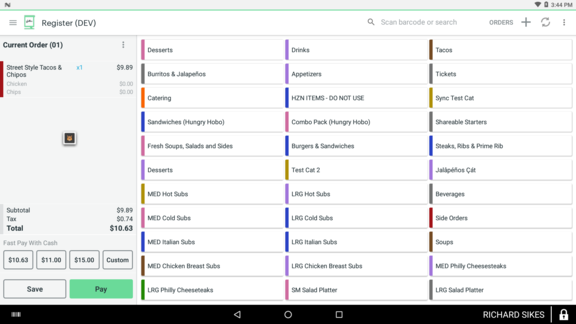
A new floating Loyalty icon is now available on the Register screen so staff can quickly look up a customer, view rewards, add points, and redeem offers—without leaving the current order.
Where do I find the Loyalty icon?
-
You’ll see a small floating Hazlnut icon on the Register screen. Tap it at any time while building an order.
How do I look up a customer?
-
Tap the Loyalty icon
-
In Loyalty Lookup, enter either:
-
Phone number, or
-
Tap Search by email to switch to Email
-
-
Tap LOOKUP
.png?width=576&height=324&name=image%20(4).png)
Can I search by phone or email?
-
Yes. The lookup screen lets you search by:
-
Phone (tap Search by phone), or
-
Email (tap Search by email to switch)
-
What happens after I look someone up?
-
You’ll see the Loyalty Results screen, which includes:
-
Customer info (ex: name, email, phone, etc.)
-
Their points balance
-
A list of Open Offers / Active Rewards
-
.png?width=576&height=324&name=image%20(7).png)
How do I add loyalty points for the current order?
-
From the Loyalty Results screen:
-
Confirm the correct customer is selected
-
Tap EARN
-
You should see a confirmation message (example: “100 points added!”)
-
This adds points tied to the current order you’re working on.
How do I view a customer's active rewards?
-
After a successful lookup, the Open Offers section shows the customer’s currently available rewards (examples shown: “5 off”, “Free App or Drink”, etc.), along with their status (like Open).
How do I redeem a reward for the current order?
-
Add items to the order as normal
-
Tap the Loyalty icon and LOOKUP the customer (if not already)
-
In Loyalty Results, select an eligible offer
-
Tap REDEEM
-
You should see a confirmation message (example: “$5.00 discount applied to order.”)